

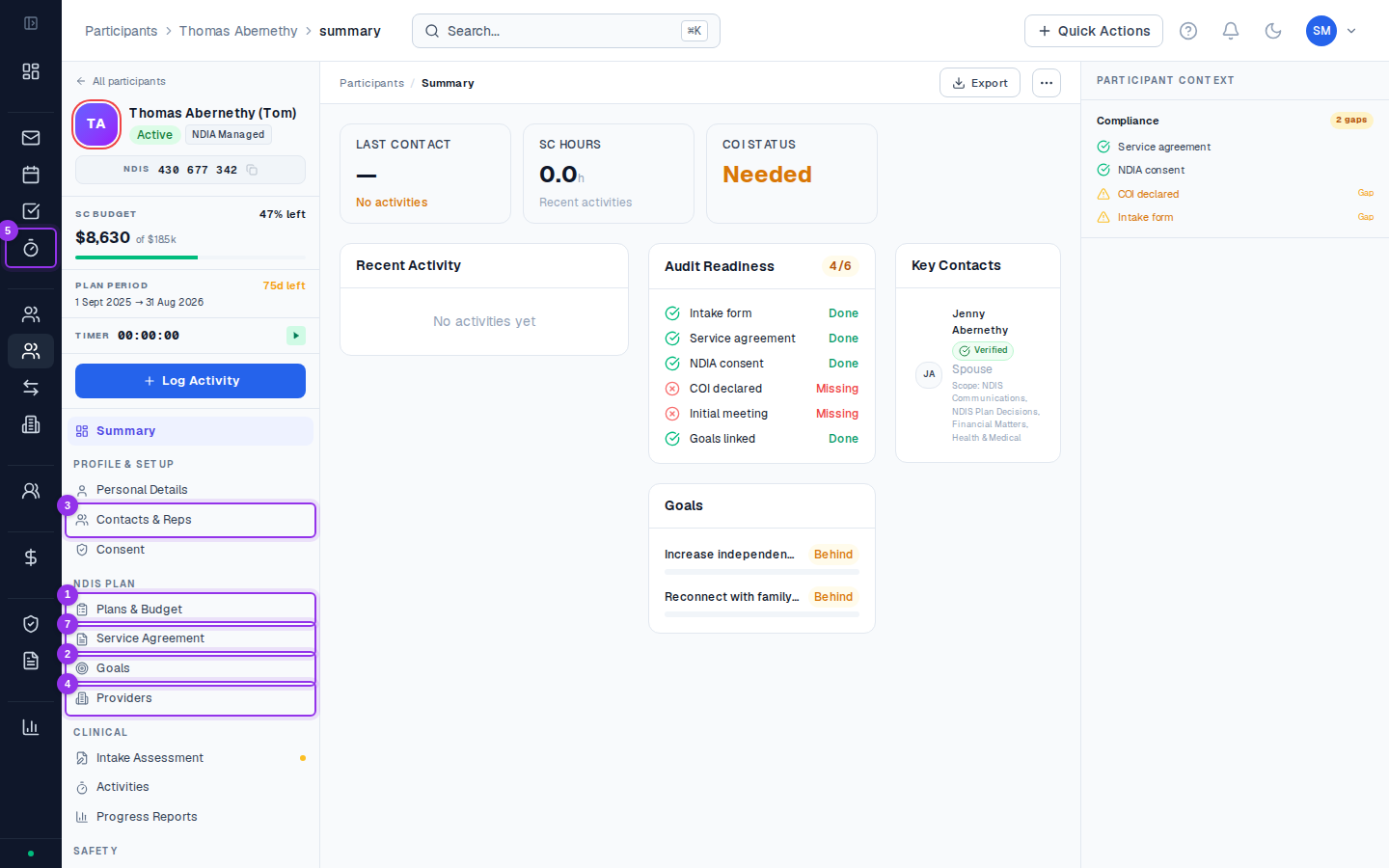
Profile tabs at a glance
Overview
Overview
Key details: legal name, preferred name, NDIS number, date of birth, address, contact numbers, and email. Also shows clinical flags (behaviour of concern, suicide risk, FDV, child protection, substance use) set during intake. The profile photo is shown here.When you’ll use it: Every time you open the participant’s profile — it’s the first tab and shows the most important quick-reference information. The assigned coordinator is also shown here (Admins can change this).What to keep current: Address and phone number are the most frequently out-of-date fields. Update them as soon as a participant advises a change.
Goals
Goals
NDIS goals for this participant, linked to their current plan. Goals show status (In Progress / Achieved / Discontinued) and can be tagged against activities to track progress over time.When you’ll use it: When adding new goals at the start of a plan period, when updating goal status as milestones are achieved, and when generating NDIA progress reports (goals populate automatically from here).What good practice looks like: Goals should use language close to the participant’s NDIS plan document. When an NDIA planner reviews a progress report, seeing familiar goal wording makes it easier to assess outcomes.
Plans
Plans
All NDIS plans for this participant, from current to historical. Each plan shows its funding period, support categories, budget utilisation, and plan health status. Click into a plan to see the full budget breakdown by category.When you’ll use it: When setting up a new plan (after a planning meeting), monitoring budget utilisation throughout the plan year, and checking the funding period dates when creating invoices or PRODA exports.Key numbers to watch: The Remaining column in each budget row and the plan health colour. A 🔴 red plan health means immediate action is needed — either the budget is overspent or there’s significant underspend risk.
Contacts
Contacts
Everyone connected to this participant — guardians, nominees, advocates, legal representatives, plan managers, emergency contacts, and GPs. Each contact has a role, authority type, and jurisdiction where applicable.When you’ll use it: When you need to contact someone on behalf of a participant, when creating a service agreement (contact details pre-fill from here), and when determining who has legal authority to sign documents.Important: Emergency contacts and “Other” contacts have no formal legal authority. Only formally appointed guardians and NDIA nominees can sign documents on a participant’s behalf.
Consent
Consent
Consent records with their type, issue date, expiry date, and current status. CoordHub alerts you when consent is approaching expiry (30 days, 7 days, and on the day it expires).When you’ll use it: At the start of engagement to confirm consent records are current, and whenever the compliance alerts bell shows a consent expiry notification. Uploading a new signed consent form creates a new record — don’t overwrite old ones.Common consent types: General consent to service, consent to share information with the NDIA, consent to share information with providers, photography and media consent.
Providers
Providers
Service providers linked to this participant. Shows the provider name, service category, and any linked documents.When you’ll use it: When a participant starts with a new provider (link the provider and document the service category), when reviewing which providers are supporting a participant for a progress report, and when checking provider verification status before a participant commences with a new service.Smart Match: Use the Find Providers button to search the provider directory for providers who match this participant’s support category needs and location.
Activities
Activities
All activities logged for this participant, in reverse chronological order. Filter by date range, status, or support item. Each activity links to the full activity record.When you’ll use it: When reviewing a participant’s service history, when a participant or plan manager queries what was delivered in a period, and when checking whether activities have been approved before invoicing.The most important filter: Status. Use Status = Draft to find activities you haven’t submitted yet. Use Status = Pending to see what’s waiting for approval.
Documents
Documents
Files uploaded for this participant — intake documents, plans, assessments, signed agreements, correspondence. See Documents for the full guide.When you’ll use it: Uploading a signed service agreement, storing a copy of the participant’s current NDIS plan, filing clinical reports from providers, and accessing OPA WA guardianship paperwork.File organisation: CoordHub doesn’t enforce folder structure within the Documents tab — use descriptive filenames to keep things findable. A convention like
YYYY-MM-DD_Document_Type.pdf works well.Intake
Intake
The 28-section intake assessment. Sections cover clinical background, vulnerability factors, home safety, support needs, legal and financial arrangements, and referral source. Completion percentage is tracked automatically.When you’ll use it: Completing it progressively during the onboarding period, updating it when a participant’s circumstances change significantly, and reviewing it before generating a service agreement (intake data pre-fills the SA).Key sections: Section 4 (clinical flags), Section 12 (legal representatives and guardianship), Section 17 (home safety), Section 22 (support network). These four sections contain the most audit-relevant information.
Service Agreements
Service Agreements
All service agreements for this participant. Shows status (Draft / Sent / Signed / Active), the support items covered, and the relevant plan period.When you’ll use it: Creating a new SA when a new plan starts, tracking whether a sent SA has been returned, uploading the signed copy when it arrives, and checking which support items are covered by the current active SA.Audit risk: If activities are being billed but there’s no Active service agreement on record, this is an audit finding. Keep the SA lifecycle current.
Progress Reports
Progress Reports
NDIA progress reports — initial (8-week), mid-term, pre-review, annual, and ad hoc. Each report includes goals, activities, budget utilisation, provider information, and incidents.When you’ll use it: Generating a progress report for a participant’s planning meeting or at NDIA request. CoordHub pre-fills goals and activities automatically — you add qualitative content and review the outputs before generating.Frequency: The NDIA doesn’t mandate a fixed frequency for progress reports, but most coordinators generate them 4–6 weeks before a plan review meeting to give planners time to read them.
Representatives
Representatives
Formal representatives — OPA WA guardians, NDIA-appointed nominees, and advocates. Records include authority type, appointment date, jurisdiction, and supporting documents.When you’ll use it: When a participant has a legal representative who needs to be documented separately from general contacts. This tab has a specific checklist for OPA WA paperwork (Service Agreement and NDIS Consent Form) — upload both documents here.Different from Contacts: The Representatives tab is for formal legal authority documents. The Contacts tab holds all connected people informally. A guardian should be in both tabs.
Incidents
Incidents
Incident records where this participant is the subject. Shows incident type, date, status, and whether a reportable incident notification has been made.When you’ll use it: After any incident involving this participant, and when reviewing incident history for a progress report or audit. Each incident links to the full incident record in Compliance → Incidents.
COI
COI
Conflict of interest declarations linked to this participant. Records who declared, the nature of the conflict, and the outcome.When you’ll use it: When a coordinator or staff member has a personal connection to a participant that could be perceived as a conflict of interest (family member, previous relationship, financial interest in a provider they’re recommending). Documenting and managing COI is an NDIS Practice Standards requirement.
Common questions
Common questions
Can I add custom fields to the participant profile?
Not at this stage — the profile fields are fixed. Use the Documents tab to upload files that capture information not covered by the standard fields.How do I find a participant’s plan expiry date quickly?
Open the participant profile and click the Plans tab. The active plan row shows the plan end date. You can also see plan expiry alerts on the dashboard Expiring Items card.Can two coordinators be assigned to the same participant?
Only one coordinator can be the primary assigned coordinator. If a participant is shared between team members (e.g. one handles billing, one handles coordination), use the administrator role for the billing staff member so they have visibility without being formally assigned.