

Before you start
The participant must already be in CoordHub with an active NDIS plan before you can log a billable activity against them. Non-billable activities can be logged without a plan.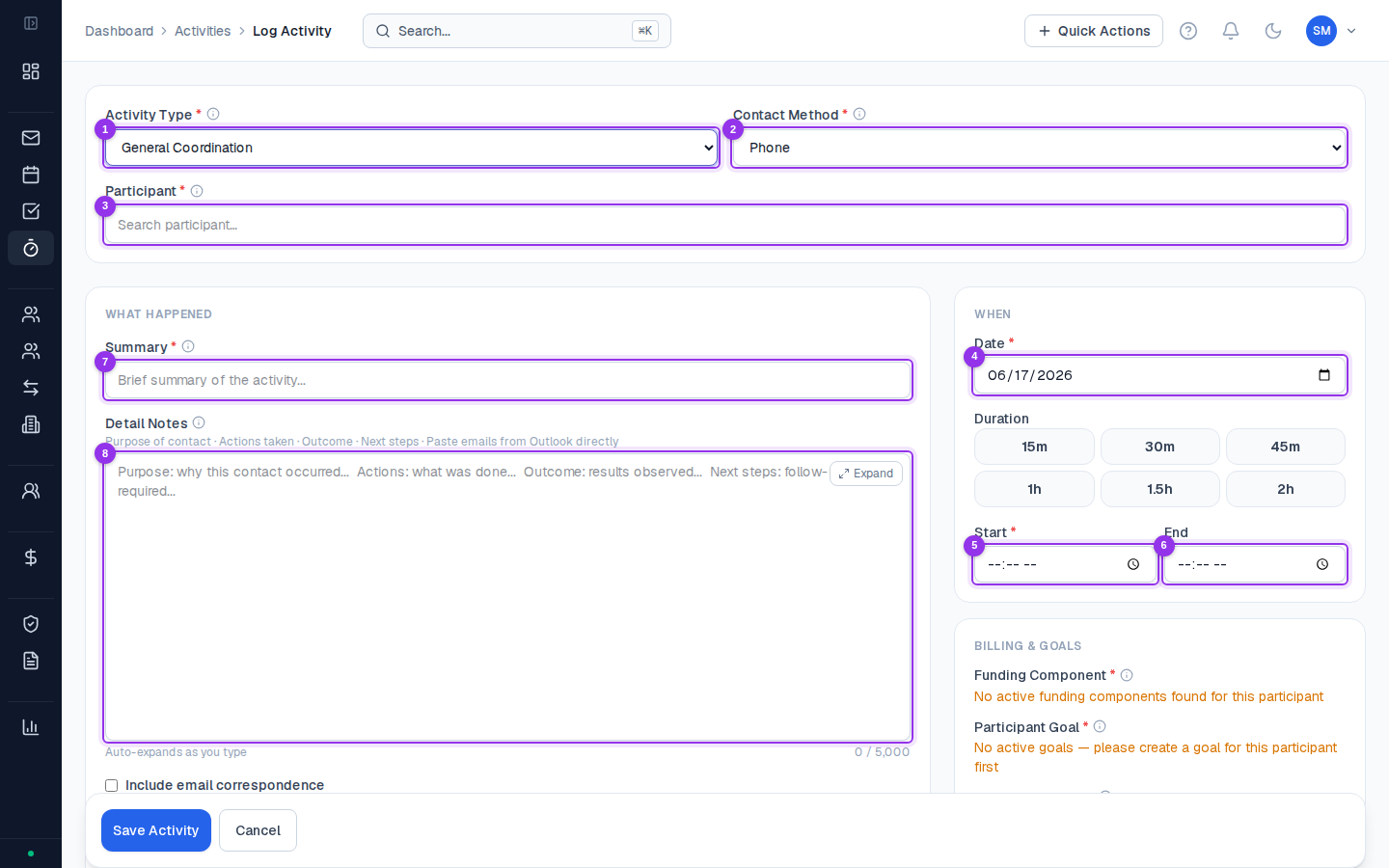
Steps
Open the activity form
Go to Activities in the sidebar and click Log Activity, or use Quick Actions → Log Activity. You can also click Log Activity from within a participant’s profile, which pre-fills the participant field.
Select the participant
Start typing the participant’s name or NDIS number. CoordHub shows matching names from your caseload.
Set the date and time
Enter the date the activity occurred and the start and end time. CoordHub calculates the duration automatically.If you used a timer for this activity, you can also convert the timer directly rather than entering times manually — see Timers.
Choose the support item
Select the NDIS support item (line item) this activity should be billed to. CoordHub shows only the support items that match the participant’s current plan budget categories.For non-billable work, select a non-billing activity type from the list instead.
Write the case note
Enter your case note in the text field. This is the clinical record of the session — what you discussed, actions taken, and next steps. There’s no character limit.
Tag goals (optional)
If this activity relates to one of the participant’s active goals, select the goal(s) from the Goals dropdown. This builds the evidence base for NDIA progress reports.
What makes a good case note?
Case notes serve two purposes: they’re your clinical record of the work you did, and they’re the evidence base for NDIS audits and NDIA progress reports. A good case note is specific, factual, and outcome-focused. NDIS auditors look for:- Who was involved (coordinator, participant, any others present)
- What took place (phone call, home visit, provider liaison, plan review meeting)
- Specific actions taken or decisions made
- Next steps agreed upon
- Whether the activity relates to the participant’s goals
Spoke with participant. Discussed supports.Example — acceptable case note:
Phone call with participant to discuss upcoming plan review scheduled for 15/08/2026. Participant confirmed they are happy with current support arrangements and would like to continue with existing providers. Advised participant to gather any new reports from treating clinicians before the meeting. Will follow up with OT to obtain updated functional assessment report. Next contact: 01/08/2026.Example — strong case note:
Home visit with participant and guardian at [suburb]. Reviewed progress against NDIS goals — Goal 1 (community access) progressing well, attended gym program at provider 3x/week for past 2 months. Goal 2 (independent living skills) partially achieved — participant now independently preparing 3 meals per week, working toward target of daily meal preparation. Discussed upcoming plan review (scheduled 15/08). Guardian raised concern about reduction in OT sessions — noted OT funding is in Category 15, not under SC management. Referred guardian to plan manager to query Category 15 utilisation. Action: send progress report draft to participant and guardian for review by 01/08/2026.The strong example is longer, but each sentence serves a purpose — it documents what happened, captures participant progress, and records the next actions with clear ownership.