

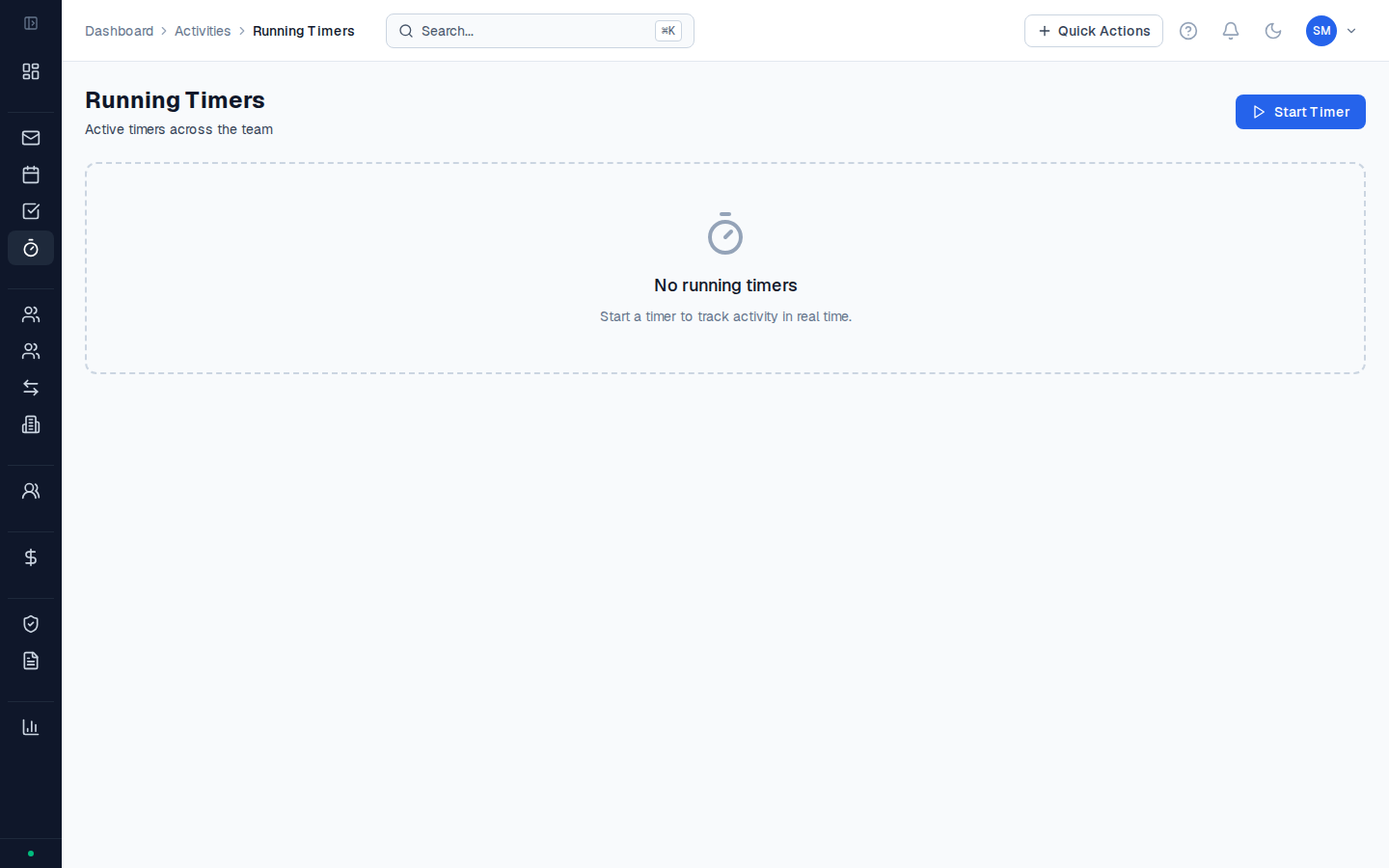
Starting a timer
Open Quick Actions
Click Quick Actions in the header and select Start a Timer. Or go to Activities → Timers and click New Timer.
Select the participant
Choose the participant this session is for. The timer starts running immediately.
Managing active timers
Go to Activities → Timers to see all your running timers. You can run multiple timers simultaneously if you’re switching between participants during a session. From the Timers view you can:- Pause a timer (keeps the elapsed time)
- Resume a paused timer
- Stop a timer and convert it to an activity
Converting a timer to an activity
Review and complete the activity form
The activity form opens with the participant, date, and duration pre-filled from the timer. Add the support item and write your case note.
Common questions
Common questions
What happens if I forget to stop a timer?
The timer keeps running indefinitely until you stop it manually. When you eventually stop it and open the activity form, you’ll see the full elapsed duration — including any overnight or weekend time if you forgot for that long. Edit the end time on the activity form before submitting to correct the duration to what you actually worked.Can I edit the time after stopping a timer?
Yes — when you stop a timer, the activity form opens with the start time locked (matching when you started the timer) and the end time editable. Change the end time to correct the duration. Once you submit the activity for approval, the duration is locked with the rest of the activity fields.Can I run timers for multiple participants at once?
Yes — CoordHub supports multiple simultaneous timers. Each timer is linked to a specific participant. Go to Activities → Timers to see all your running timers. Be careful with multiple timers — make sure you’re stopping the right one when you finish a session.Do timers save if I close my browser?
Yes — timers are saved server-side, not in your browser. If you close the tab, restart your computer, or lose connectivity, the timer continues running. Reopen CoordHub and go to Activities → Timers to find it.