

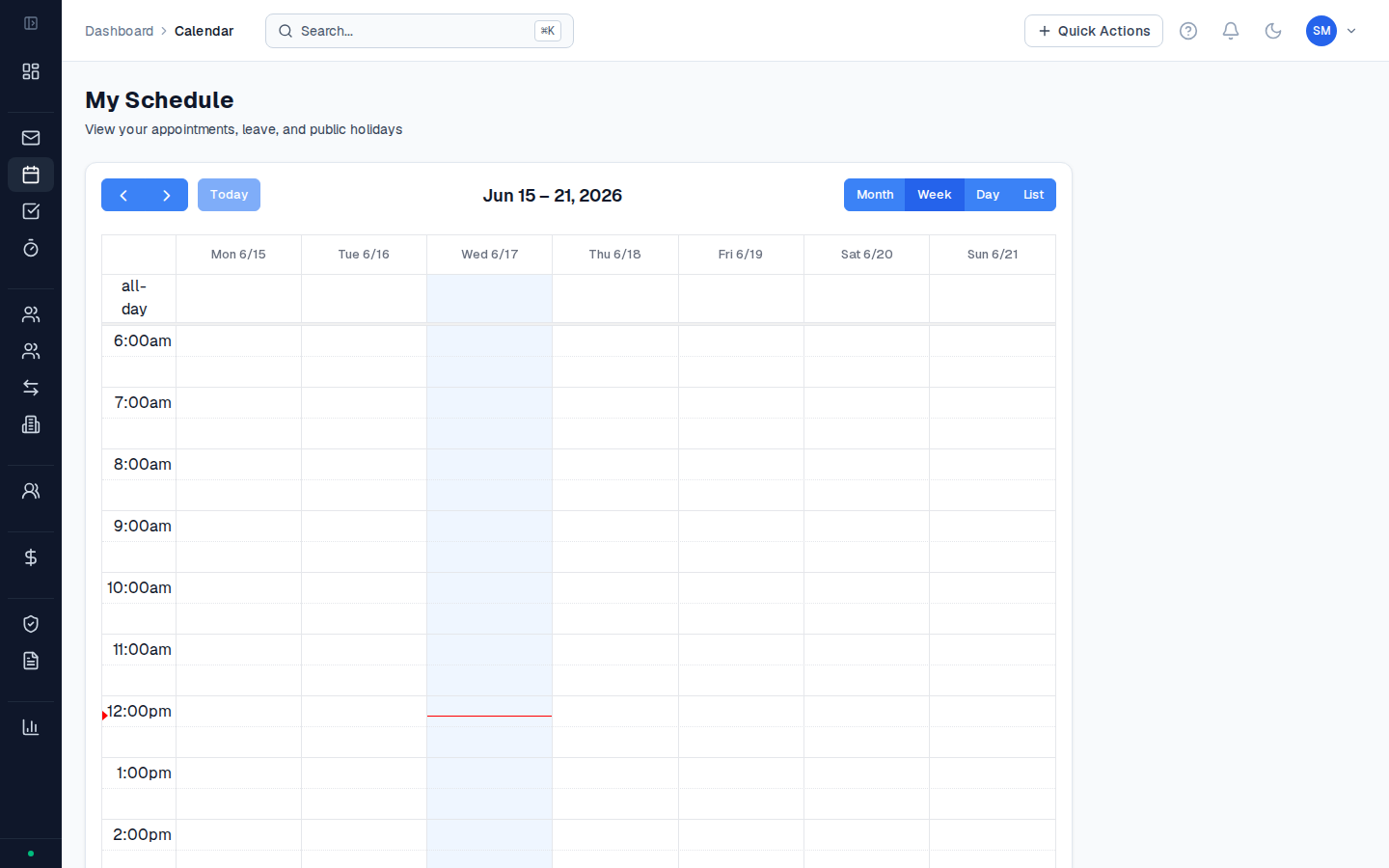
What’s shown on the calendar
Activities appear on the calendar on the date they were delivered. The colour coding and display depends on their status:| Status | Appearance |
|---|---|
| Draft | Shown in muted colour — only visible to the coordinator who created it |
| Pending | Shows in pending colour — visible to managers in the approval queue |
| Approved | Solid colour — confirmed, billable activity |
Calendar navigation
- Use the week and month toggle to switch between views
- Arrow buttons navigate forward and back
- Click Today to return to the current period
- Click on any activity block to open the full activity record
Filtering the calendar
By default the calendar shows your own activities. If you have a manager role, use the Coordinator filter to see another staff member’s activities, or switch to All to see the full organisation view.Common questions
Common questions
Why don’t I see all my activities on the calendar?
The calendar shows activities by their delivery date. If an activity was logged with the wrong date, it may appear in a different week or month. Check the activity list (Activities in the sidebar) and confirm the date field on any activity that seems missing.Can I print the calendar view?
Use your browser’s print function (Cmd+P / Ctrl+P) to print the calendar. The month view prints better than the week view. For a more structured activity list for printing, use Reports → Activities and generate a PDF report for the relevant date range.Can I see a colleague’s calendar?
If you have a manager role, use the Coordinator filter at the top of the calendar to switch to another staff member’s view. Standard coordinators can only see their own calendar.